Debugging
Debugging a logic-brick graph is about proof: making the graph tell you what it actually did, not what you assumed it did. The bricks below turn an invisible chain of pulses into something you can read, and the habits at the end keep that proof honest.
Keep the Output panel meaningful
GDLink strives for error-free execution. Treat Godot Output errors and warnings as signals to investigate, not background noise to live with. A clean Output panel makes real regressions, broken paths, invalid targets, and runtime mistakes stand out immediately.
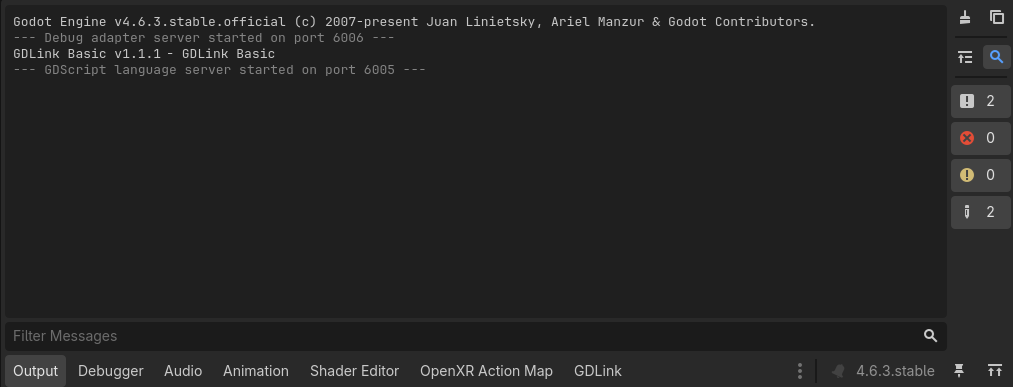
When a graph does need temporary diagnostics, use deliberate probes and remove them after the behavior is proven.
Start with a print probe
Print writes deterministic probe lines to the console — the fastest way to confirm a branch fired and to inspect a value mid-graph.

Warning
A Print proves the branch fired — it does not prove the connected gameplay executor finished its work. A graph that prints “jumped” can still have a Motion3D that never moved the body. Print is the start of debugging, not the end.
Prefer closed-loop proof
A one-way Print is an open loop — you told the engine to do something and assumed it happened. A closed loop reads the result back and proves it. Reach for these instead of trusting the print:
Collision / contact — a Collision listener firing proves the body actually reached the surface, not just that you called move.
Variable readback — write a value, then read it in a later branch and Print it. If the readback disagrees with what you set, the executor didn’t take.
Visible UI labels — a Label bound to a live value (
hp,state, position) turns internal state into something you watch on screen while playing.Verbose executor output — many executors can report the path and parameters they actually used; that confirms which mode ran, not just that the brick was reached.
Motion3D(jump) ; Ray(Down, 1.2) -> AND -> Label(target=HUD, text="grounded={grounded}")
If the label still reads grounded=true after a jump, the jump never left the floor — the closed loop caught what a “jumped!” print would have hidden.
Watch events and messages
When behavior crosses object boundaries, prove the hand-off, not just the send.
Signal reacts to a native Godot signal being emitted — UI presses, AnimationPlayer finishes, custom script signals — so you can confirm an engine event truly fired and pin a Print to it.
Message sends object-to-object events over the MessageBus (boss dies → trigger cutscene, hit → deal damage). To debug a broadcast, prove the receiver heard it: have the receiving object Print on the message branch, not just the sender on send.
Signal(node=PlayButton, signal=pressed) -> AND -> Print("button received")
Message(recv) -> AND -> Print("damage applied={amount}")
A debugging checklist
Reproduce with the smallest graph — strip to the one listener → gate → executor in question.
Print at the gate — confirm the branch fires at all before suspecting the executor.
Close the loop — read the result back (collision, variable, label) to prove the executor’s effect.
Check the gate, not just the listener — an AND with an unmet input silently blocks; Print each input.
Remove the probes — Print lines are recon noise in a shipped build; pull them once the path is proven.
Where to go next
The full Logic Reference — every listener, gate, and executor
Core Concepts → Logic Bricks for how pulses flow through a graph
The 2D/UI, 3D, and XR guides for context-specific brick choices